Managing Campaigns
This guide explains the normal administrator workflow for creating, approving, and monitoring service price campaigns.
Open the Module
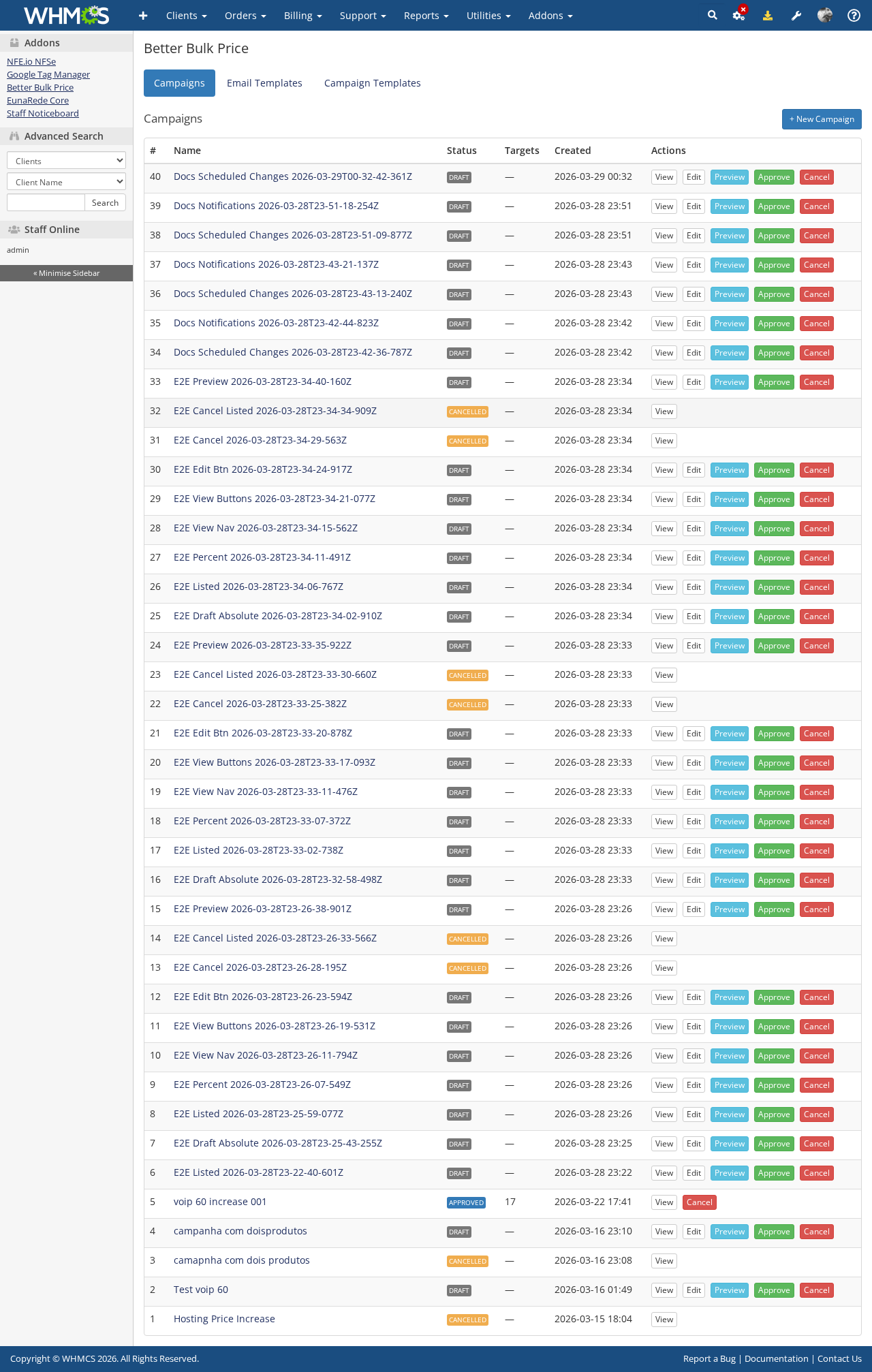
Go to Addons > Better Bulk Price in the WHMCS admin area. The default page shows the campaign list and the current status of each campaign.
The admin navigation also includes dedicated sections for Email Templates and Campaign Templates.
Reuse Campaign Setups
Better Bulk Price now supports two ways to reuse prior work:
- Campaign templates — save a reusable blueprint with filters, pricing rules, email template selection, and batch settings.
- Campaign cloning — copy an existing campaign into a new draft with timing fields cleared.
Use templates when you want a standard reusable starting point. Use cloning when you want to start from a real past campaign.
Create a Campaign Template
- Open the
Campaign Templatessection. - Click
New Template. - Configure filters, pricing rule, email template, and optional batch settings.
- Save the template for future campaign creation.
Save a Campaign as a Template
On a campaign detail page, click Save as Template and enter the template name. Better Bulk Price copies the campaign configuration into a reusable template record.
Clone an Existing Campaign
On a campaign detail page, click Clone and provide a new campaign name. Better Bulk Price creates a new draft that preserves the source campaign configuration but clears scheduling fields so your team can review timing separately.
Create a Draft Campaign
Click New Campaign and complete the form.
At the top of the form, you can optionally use the Start from a template selector to pre-fill the campaign from a saved template.
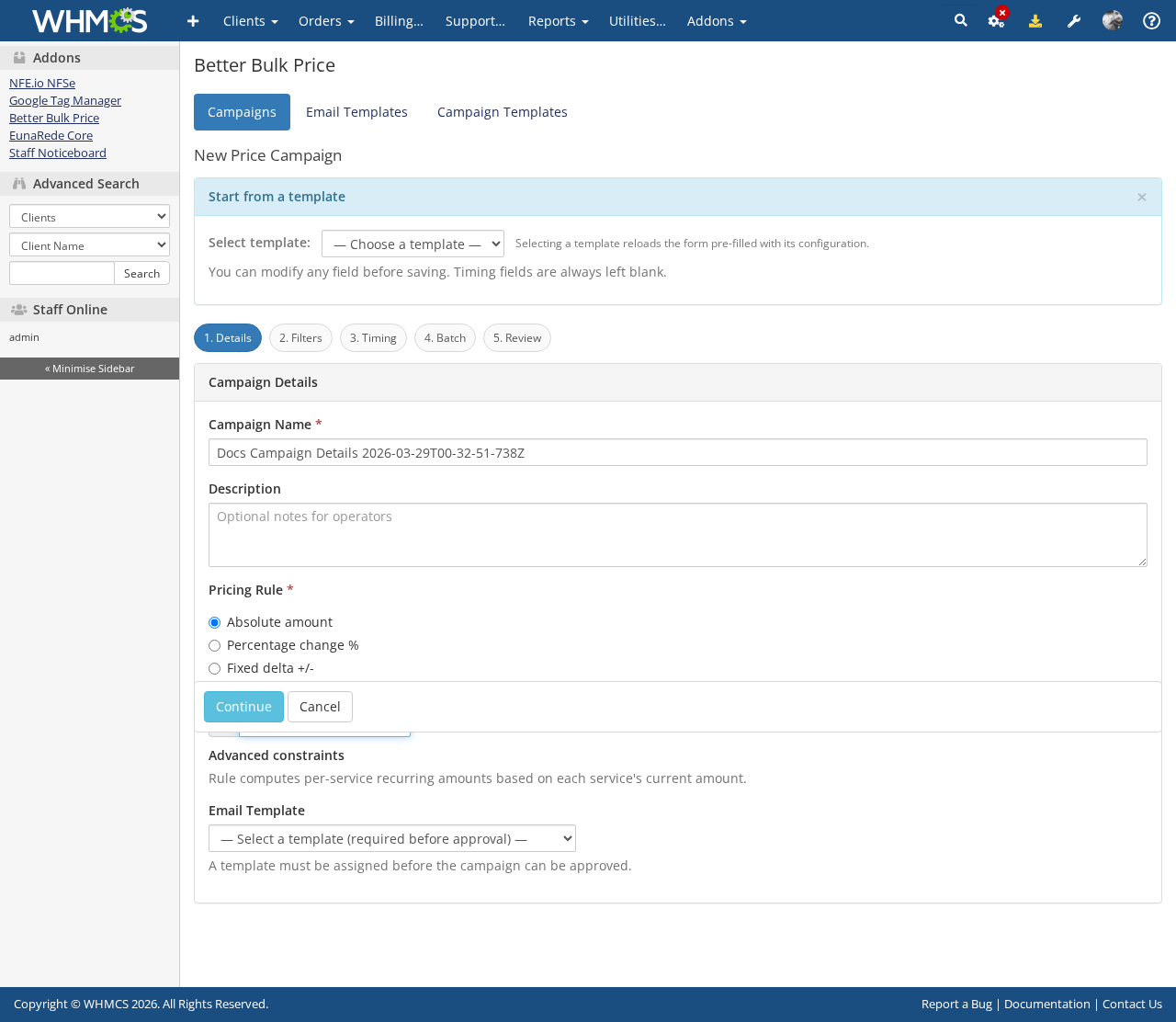
The campaign form includes these main fields:
| Field | Description |
|---|---|
| Campaign Name | Internal name used by administrators. |
| Description | Optional internal notes. |
| Pricing Rule | How the new recurring amount is calculated. |
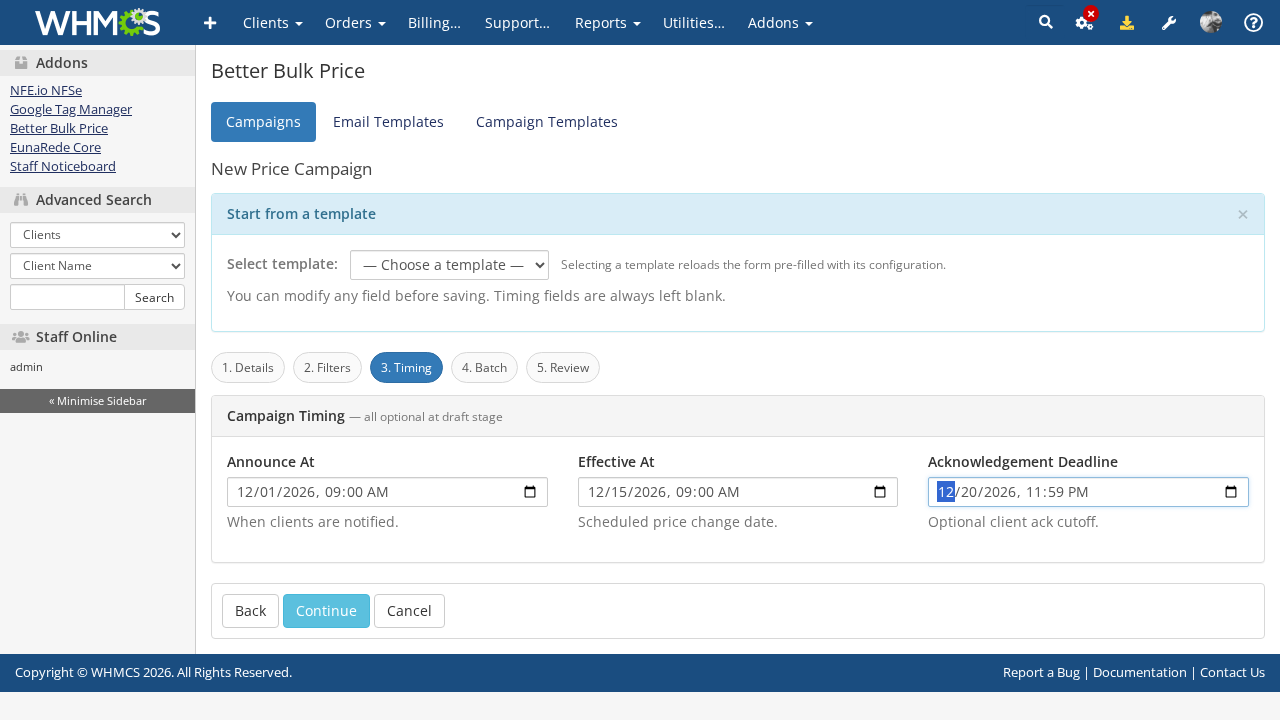
| Announce At | When notifications should begin. |
| Effective At | When the new price should become eligible for execution. |
| Acknowledgement Deadline | Optional deadline for client acknowledgement. |
The form also includes an optional Batch Execution section:
| Field | Behaviour |
|---|---|
| Batch Size | Caps how many frozen targets are processed in a single execution run. Leave blank to process all unresolved targets in one run. |
| Pause Between Batches | If enabled, each run stops in paused status after one batch when unresolved targets remain. An administrator must click Resume to continue. |
Pricing Rule Modes
The Pricing Rule field defines how Better Bulk Price computes the new recurring amount for each matched service:
| Mode | Behaviour |
|---|---|
absolute | Sets all matched services to a fixed recurring amount (e.g. R$ 49.90). |
percentage | Increases or decreases the current recurring amount by a percentage (e.g. +10%). |
delta | Adds or subtracts a fixed monetary value from the current recurring amount (e.g. +R$ 5.00). |
All modes support optional floor, ceiling, and rounding constraints. These let you, for example, ensure that no service is priced below R$ 10.00, cap the increase at R$ 200.00, or round results to the nearest R$ 0.50.
Campaign Filters
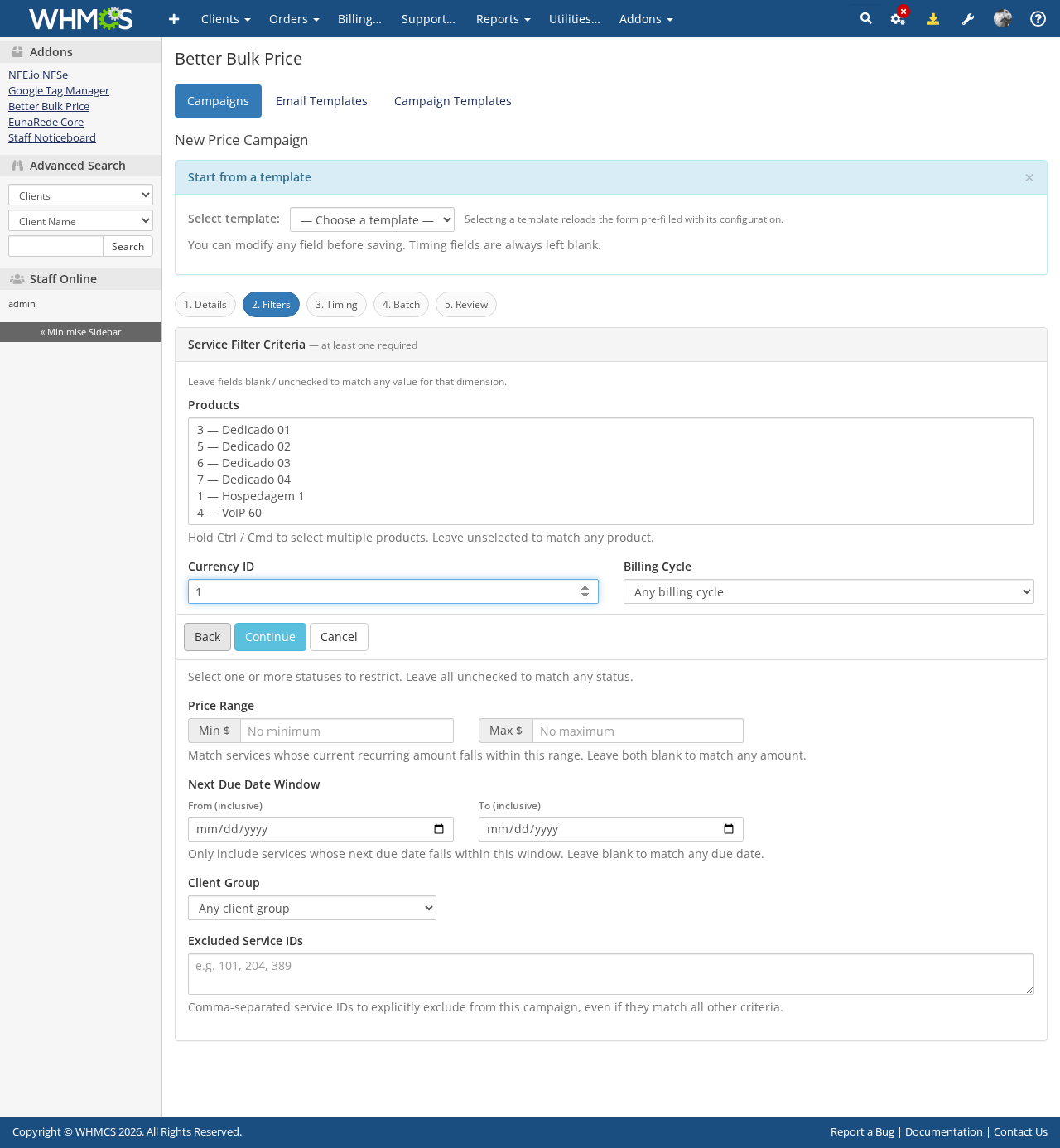
Use one or more filters to narrow the affected service population:
| Filter | Description |
|---|---|
| Product | Multi-select. Match services on any of the selected products. |
| Currency | Match services billed in a specific currency. |
| Billing Cycle | Match services on a specific billing cycle. |
| Service Status | Multi-select. Match services in any of the selected statuses (e.g. Active, Suspended). |
| Price Range | Match services whose current recurring amount falls between a minimum and maximum value. |
| Next Due Date Window | Match services renewing within a specific date range (Due After / Due Before). |
| Client Group | Restrict the campaign to services belonging to clients in a specific WHMCS client group. |
| Excluded Service IDs | Comma-separated list of service IDs that are explicitly removed from the target set even when they match all other criteria. |
The module requires at least one filter so campaigns cannot accidentally target every service.
If the draft was created from a campaign template, you can still change any field before saving or approving the campaign.
Preview Before Approval
Use Preview while the campaign is still in draft.
Preview uses live WHMCS service data to show you the expected impact before anything is made permanent.
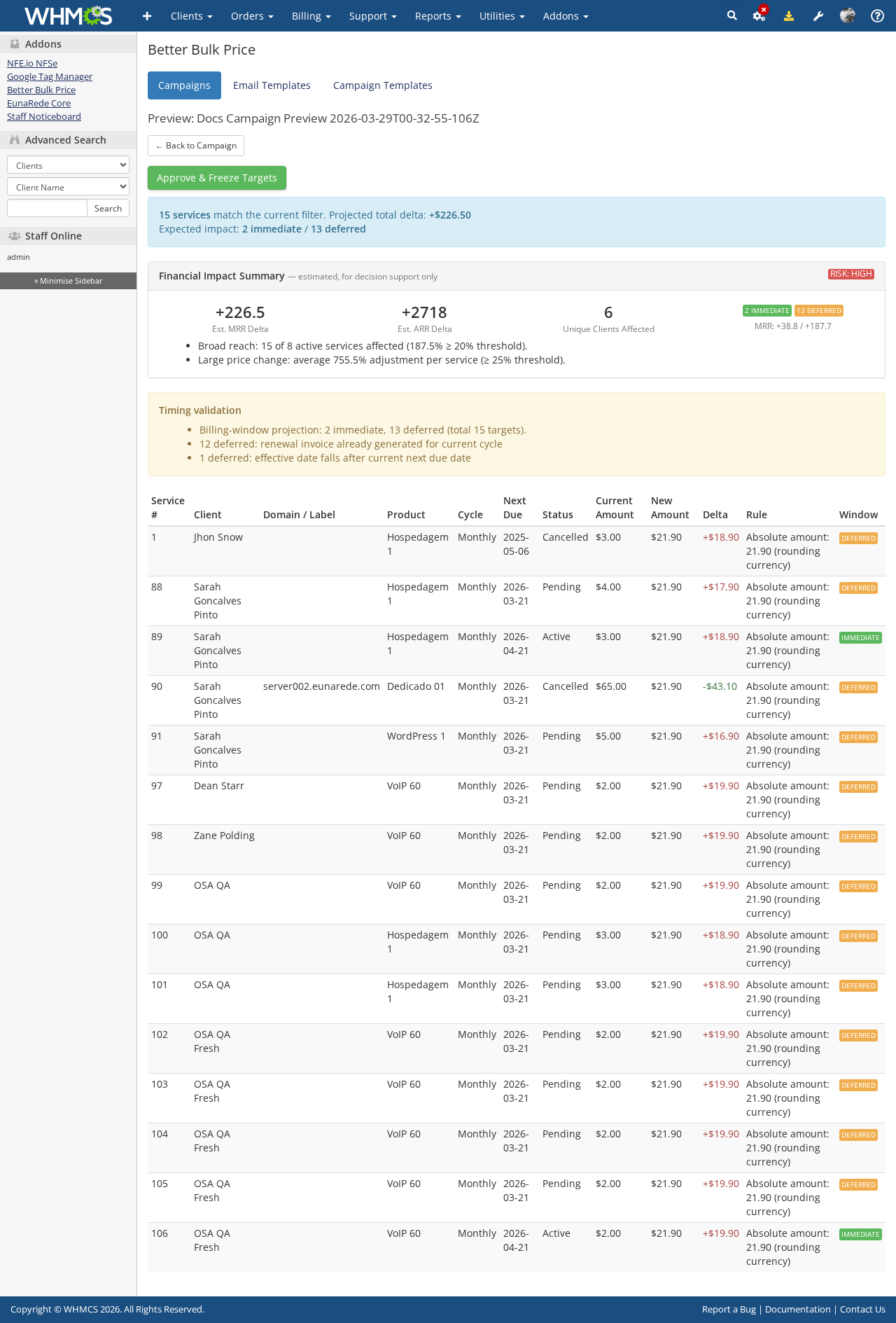
Service Table
The standard preview lists each matched service with its current recurring amount, the computed new recurring amount, and whether it can be updated immediately or will be deferred because of renewal timing.
Financial Impact Summary
At the top of the preview results, Better Bulk Price shows a Financial Impact Summary panel. This gives team leads and operations managers the key metrics needed to approve a price change with confidence.
| Metric | What it shows |
|---|---|
| Estimated MRR Delta | Total monthly recurring revenue change, normalised across billing cycles. A +R$6 change on a Quarterly service contributes +R$2/month. |
| Estimated ARR Delta | Annual recurring revenue equivalent (MRR delta × 12). |
| Unique Clients Affected | Distinct client count across the matched population. A client with three matched services is counted once. |
| Immediate / Deferred Split | Service count and attributed MRR delta for services that can be updated immediately vs. those deferred to a later billing window. |
Below the metrics row, Better Bulk Price shows a risk badge and a list of risk factors:
- Low — the change affects a small proportion of active services and the average price increase is modest.
- Medium — the change has a moderate breadth or magnitude.
- High — the change affects a large share of active services (≥ 20%) or involves an average price increase of 25% or more.
When the matched population spans more than one currency, a per-currency breakdown table appears below the risk summary with service count and estimated MRR delta per currency code.
The Financial Impact Summary is an estimate based on a sample of matched services. Actual revenue impact will vary depending on renewal timing, service eligibility at execution time, and any account changes between preview and execution.
The final target list is only frozen when the campaign is approved.
Approve the Campaign
Approval is the point where Better Bulk Price freezes the target snapshot.
After approval:
- The matched service population is stored for that campaign.
- Baseline and new recurring amounts are preserved for each target.
- A Financial Impact Summary is computed over the full frozen target set and stored with the campaign. The campaign detail view will show these approval-time figures for the lifetime of the campaign, even after the underlying pricing data changes.
- Later execution does not recalculate a different live target list.
If you need different targeting after approval, the recommended approach is to cancel the campaign and create a new one.
Schedule Execution Safely
Approved campaigns are processed by the WHMCS daily cron.
For each service target, the module evaluates whether the change can still affect the upcoming renewal cycle safely. If an invoice was already generated for the current billing window, the target can be deferred instead of being changed immediately.
This behavior helps avoid silent repricing of already-generated invoices.
When a campaign has a Batch Size, Better Bulk Price processes targets in ascending service ID order so each batch is deterministic. This makes phased rollouts predictable and easier to review between runs.
Validate With Dry Run
Approved campaigns can be executed in Dry Run mode before any real mutation happens.
Use a dry run when you want to:
- Confirm the frozen target set behaves as expected.
- Review which services would be updated immediately and which would be deferred.
- Give operations or support teams one final audit checkpoint before the real rollout.
Dry runs use the same target-selection and billing-window logic as a real run, but they do not call the WHMCS service update API. Run history labels them clearly as Dry Run so they are never confused with production changes.
Resume a Paused Campaign
If Pause Between Batches is enabled and unresolved targets remain, the current run ends in paused status.
To continue:
- Open the campaign detail page.
- Find the paused run in the execution history.
- Click
Resume.
The next execution run continues from the remaining unresolved targets. The cron does not auto-resume paused campaigns.
Notify Clients
When the announcement time is reached, Better Bulk Price can generate:
- A client area pricing notice.
- An email notification through WHMCS.
Each notice is linked to the affected service and normally includes the previous recurring amount, the new recurring amount, and the effective date.

Track Acknowledgement
Acknowledgement is tracked per affected service, not only at the campaign level. This gives support teams a clearer record when one client has multiple affected services in the same campaign.
In the current release, acknowledgement is non-blocking. A missing acknowledgement does not automatically stop a scheduled update.
Monitor Results
From the campaign detail view, administrators can review:
- The Financial Impact Summary snapshot computed at approval time — MRR delta, ARR delta, unique clients, immediate/deferred split, risk badge, and per-currency breakdown.
- Frozen targets.
- Execution runs, including
pausedruns andDry Runlabels. - Deferred or failed items.
- Notification delivery status.
- Acknowledgement records.
This gives the team an explainable record of what was planned, what was communicated, and what was actually executed.
Cancel a Campaign
Draft and approved campaigns can be cancelled when needed. Cancelling a campaign prevents future execution, while preserving the existing history for auditing and support review.