Custom GTM Domain for Server-Side Tracking
Google Tag Manager for WHMCS supports custom domains for server-side Google Tag Manager configurations. This feature allows you to load GTM container scripts from your own domain instead of the default www.googletagmanager.com, providing several benefits for tracking accuracy and reliability.
Available from version 4.3.0+
Benefits of Custom Domains
Using a custom domain for your GTM container provides:
- Improved Tracking Reliability: Bypass ad blockers and tracking prevention mechanisms that commonly block
googletagmanager.com - Same-Origin Cookies: Better cookie handling with same-origin benefits when GTM runs on your domain
- Enhanced Data Collection: Reduce data loss from browser privacy features and extensions
- Brand Consistency: Keep all tracking infrastructure under your domain
Prerequisites
Before configuring a custom domain in WHMCS GTM, you need:
- Server-Side GTM Setup: A server-side Google Tag Manager container already configured and running
- Custom Domain Infrastructure: Your own domain or subdomain pointing to your GTM server
- DNS Configuration: Properly configured DNS records (CNAME or A record) pointing to your GTM server
- SSL Certificate: Valid SSL certificate installed for your custom domain (HTTPS is required)
This feature is only for server-side GTM configurations. If you're using standard client-side GTM, you don't need to configure a custom domain. The module will automatically use Google's default domain.
Configuration
Setting Up Custom Domain
- Navigate to Addons → Google Tag Manager in your WHMCS admin panel
- Locate the Custom Domain (Optional) field below the Container ID field
- Enter your custom GTM domain (e.g.,
gtm.example.com) - Click Save
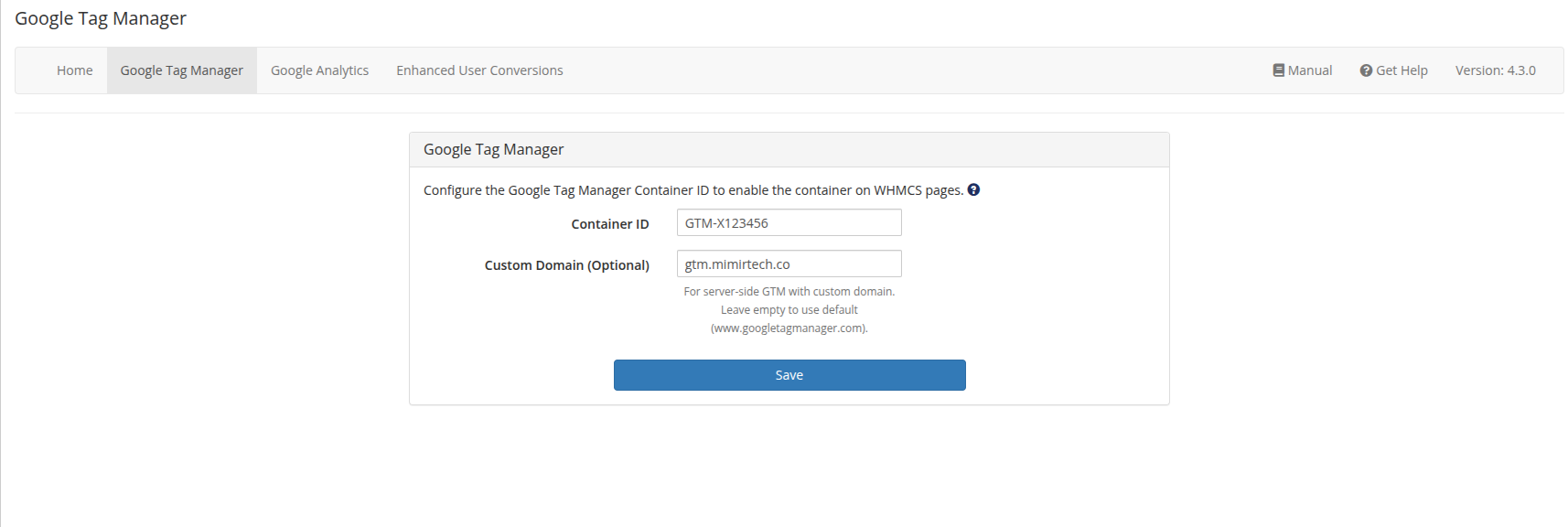
Domain Format Requirements
When entering your custom domain, follow these guidelines:
| ✅ Valid Format | ❌ Invalid Format | Reason |
|---|---|---|
gtm.example.com | https://gtm.example.com | Do not include protocol (http/https) |
tracking.yourdomain.com | gtm.example.com/path | Do not include path components |
gtm-server.example.com | gtm.example com | No spaces allowed |
| (empty field) | [email protected] | No special characters |
If you accidentally include http:// or https:// in your domain, the module will automatically strip it for you. However, it's best to enter only the domain name.
Domain Validation
The module automatically validates your custom domain input to prevent configuration errors:
- Protocol Removal: Automatically strips
http://andhttps://prefixes - Hostname Validation: Ensures valid hostname characters and structure
- Path Rejection: Prevents configuration with path components
- Empty Value Allowed: Leaving the field empty falls back to default Google domain
If you enter an invalid format, you'll see an error message explaining the issue.
How It Works
URL Generation
When a custom domain is configured, the module generates GTM container URLs using your domain:
Default Behavior (No Custom Domain):
<!-- Google Tag Manager -->
<script src="https://www.googletagmanager.com/gtm.js?id=GTM-XXXXX"></script>

<!-- Noscript fallback -->
<iframe src="https://www.googletagmanager.com/ns.html?id=GTM-XXXXX"></iframe>
With Custom Domain Configured:
<!-- Google Tag Manager -->
<script src="https://gtm.example.com/gtm.js?id=GTM-XXXXX"></script>

<!-- Noscript fallback -->
<iframe src="https://gtm.example.com/ns.html?id=GTM-XXXXX"></iframe>
Backwards Compatibility
The custom domain feature is fully backwards compatible:
- Existing installations continue working without any changes
- If no custom domain is configured, the module uses
www.googletagmanager.com - All existing GTM containers work exactly as before
Server-Side GTM Setup
To use a custom domain, you need a server-side GTM infrastructure. Here's a high-level overview:
1. Create Server-Side Container
- In your Google Tag Manager account, create a new Server container (not Web)
- Note the container configuration and tagging server URL
- Configure your server container with necessary tags and triggers
2. Deploy GTM Server
Deploy your GTM server using one of these methods:
- Google Cloud Run: Recommended by Google, easiest setup
- App Engine: More control over infrastructure
- Self-hosted: Docker container on your own infrastructure
- Third-party providers: Managed GTM server hosting services
3. Configure DNS
Point your custom domain to your GTM server:
# Example DNS Configuration (CNAME)
gtm.example.com.  CNAME  your-gtm-server.run.app.

# Or with A record
gtm.example.com.  A  203.0.113.1
4. Setup SSL Certificate
Ensure your custom domain has a valid SSL certificate:
- Use Let's Encrypt for free certificates
- Or configure SSL through your hosting provider
- GTM requires HTTPS for security
5. Configure in WHMCS
Once your infrastructure is ready, enter the domain in WHMCS GTM configuration.
For detailed server-side GTM setup instructions, refer to:
Testing Your Configuration
After configuring a custom domain:
1. Verify Container Loading
- Visit any page on your WHMCS installation
- Open browser Developer Tools (F12)
- Go to Network tab
- Filter by your custom domain (e.g.,
gtm.example.com) - Verify that
gtm.jsis loading successfully from your domain
2. Check Source Code
View the page source (Ctrl+U or Cmd+U):
<!-- Should show your custom domain -->
<script src="https://gtm.example.com/gtm.js?id=GTM-XXXXX"></script>
3. Console Errors
Check the browser console for any errors:
- No 404 errors for GTM scripts
- No CORS errors
- No SSL certificate warnings
4. GTM Preview Mode
Use GTM's Preview mode to verify events are firing correctly through your custom domain.
Troubleshooting
GTM Container Not Loading
Problem: GTM script fails to load from custom domain
Solutions:
- Verify DNS is properly configured and propagated
- Check SSL certificate is valid and not expired
- Ensure GTM server is running and accessible
- Test domain directly in browser:
https://gtm.example.com/gtm.js?id=GTM-XXXXX
Mixed Content Warnings
Problem: Browser shows mixed content warnings
Solution:
- The module always uses HTTPS for GTM URLs
- Ensure your custom domain has a valid SSL certificate
- Check that your WHMCS installation is also running on HTTPS
Validation Error: "Invalid format"
Problem: Error when saving custom domain
Solution:
- Remove
http://orhttps://from the domain - Remove any path components (everything after the domain)
- Ensure no special characters or spaces
- Example correct format:
gtm.example.com
Validation Error: "Paths not allowed"
Problem: Error when including path in domain
Solution:
- Use only the domain name:
gtm.example.com - Not:
gtm.example.com/pathorgtm.example.com/gtm
Fallback to Default Domain
Problem: Want to revert to Google's default domain
Solution:
- Simply clear the Custom Domain field
- Leave it empty and save
- Module automatically falls back to
www.googletagmanager.com
Security Considerations
HTTPS Requirement
The module always generates GTM URLs with HTTPS protocol, regardless of your configuration. This ensures:
- Secure communication between browser and GTM server
- No mixed content warnings on HTTPS sites
- Compliance with modern browser security requirements
Domain Validation
The module validates domain input to prevent:
- Code injection: Only valid hostname characters allowed
- Path traversal: Paths are rejected
- Protocol confusion: Protocols automatically stripped
Best Practices
1. Use Dedicated Subdomain
Use a dedicated subdomain for GTM tracking:
✅ Good: gtm.example.com, tracking.example.com
❌ Avoid: example.com, www.example.com
2. Monitor Server Health
Regularly monitor your GTM server:
- Check uptime and availability
- Monitor response times
- Set up alerts for downtime
3. Test Before Production
Always test custom domain configuration:
- Test in staging environment first
- Verify all events fire correctly
- Check browser compatibility
4. Document Your Setup
Keep documentation of:
- DNS configuration
- SSL certificate expiration dates
- GTM server deployment method
- Container configuration
5. Have Fallback Plan
Be prepared to quickly revert:
- Know how to clear custom domain setting
- Have access to GTM server infrastructure
- Monitor tracking data for anomalies
Performance Considerations
Latency vs. Reliability Trade-off
Using a custom domain may introduce different performance characteristics:
- Google's CDN: Fast global distribution, but detectable by ad blockers
- Custom Domain: Better tracking reliability, but depends on your infrastructure
Consider:
- Your server location vs. user locations
- CDN or proxy in front of GTM server
- Network performance monitoring
Recommendation
For best performance with custom domains:
- Use a CDN or edge network in front of your GTM server
- Deploy GTM server close to your users geographically
- Monitor and optimize server response times
Migration Guide
From Default to Custom Domain
- Set up server-side GTM infrastructure
- Test custom domain setup externally
- Enter custom domain in WHMCS admin
- Verify tracking continues working
- Monitor for 24-48 hours
From Custom Domain to Default
- Clear the Custom Domain field in WHMCS
- Save configuration
- Verify tracking switches back to
googletagmanager.com - Optionally decommission GTM server infrastructure